
Job Screen
Displaying the job screen
A job refers to an individual operation unit such as printing or sending.
Tap [Job List] on the home screen or on the main menu of classic style; you can view the active job or job history, or print a sending/receiving result report.

Tips
- The icon and operation status of the active job are displayed while the job is running. For details on the icon types, refer to Icons indicating the type of an active job.
Viewing active jobs
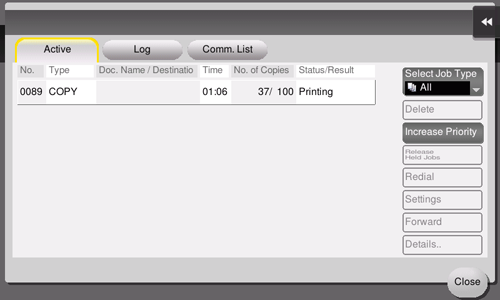
Tap [In Progress] to display active or standby jobs on this machine. As necessary, you can reorder print jobs or delete a standby job.
Item | Description |
|---|---|
[Select Job Type] | Used to filter jobs to be displayed in the list based on the job type such as a print job or send job. |
[Delete] | Deletes a job selected in the list. |
[Increase Priority] (Print Job) | Changes the printing priority when print jobs are queued. Select a job to be printed first in the list of queued print jobs, and also tap [Start].
|
[Release Held Jobs] (Print Job) | Configure the proof print function and display a list of executed print jobs using the printer driver. When printing, select a desired print job, and tap [Start]. If necessary, you can change print settings or delete a job. |
[Settings] | Check the setting of a job selected in the list. |
[Details..] | Check detailed information of a job selected in the list. |
[Disp. Warning] | Displays the warning screen for an error when you select a job in which the error occurs. |

Viewing the job history
Tap [Log] to display a list of jobs processed on this machine up till then. You can check a job that could not be ended due to an error.
Item | Description |
|---|---|
[Select Job Type] | Used to filter jobs to be displayed in the list based on the job type such as a print job or send job. Jobs can be further filtered in combination with [Limitation Filter]. |
[Limitation Filter] | Used to filter jobs to be displayed in the list based on the selected conditions.
|
[Details..] | Check detailed information of a job selected in the list. |
Tips
- If user authentication is installed on this machine, change the authentication method and clear all management data; the job history is deleted.
Printing a communication report
Tap [Comm. List] to print a communication report that contains the results of Scan jobs.
To print a communication report, select a target for [Report Type], tap [Selection Confirm]. Use the Start key to start printing.
 in the upper-right of a page, it turns into
 and is registered as a bookmark.